Last Updated on 03/17/2015 by Julius Motal
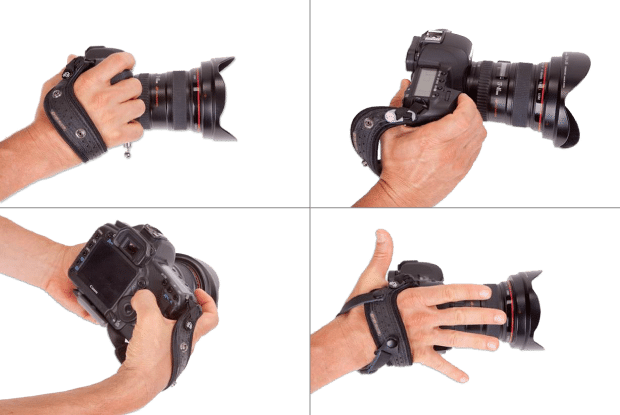
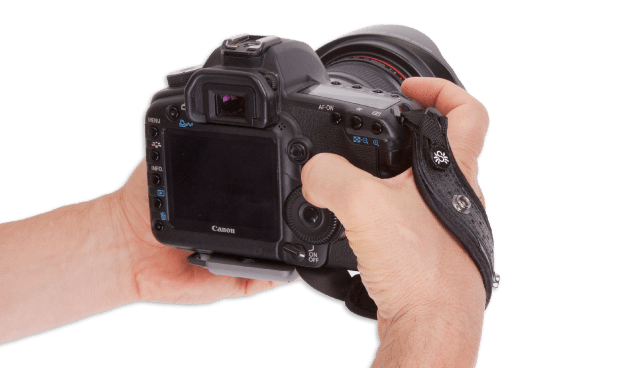
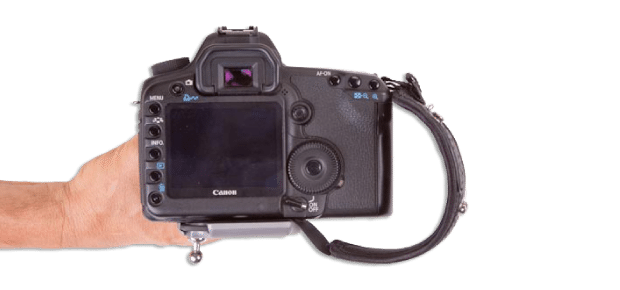
We’re no stranger to Spider Holster’s products. We previously took a look at their Black Widow harness, and have feature a number of the takes on straps and things for your cameras and accessories, though the Spider Monkey nearly gave us a heart attack. Now, they’ve got an S-shaped strap called the Spider Pro Hand Strap.
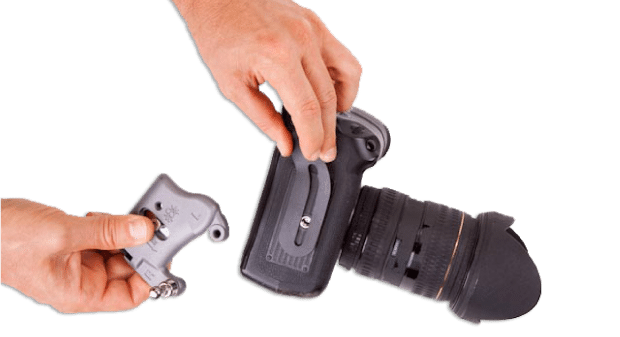
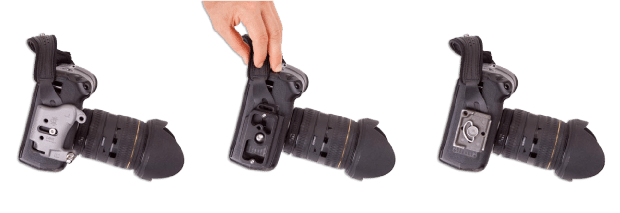
Essentially, it attaches to the top right hook and a base plate that’s fastened to the tripod thread underneath. The material for the bottom connection is thin enough that it can fit between the camera and any tripod plate. The curve of the strap allows easy access to the SD card slot and battery compartment. It’s made from a combination of materials, with leather being the most prominent.
It’s available in black for $65, or in a color (cream, red, brown, kodiak) for $75. We’ll let you know what we think when we get a unit in to review, though we wager it’ll be mighty useful for folks photographing outdoors, events, concerts and protests.
Head on for product images.

Get rid of the ads!
Did you enjoy reading this article as much as we enjoyed writing it? There's a way to support us and our reporting, getting ad-free navigation and more as a bonus. Subscribe to us for less than a coffee per month —just $3.99— or take advantage of our yearly subscription with a hefty discount for only $25.- An ad-free experience
- A free mystery box for Lightroom or Capture One
- All the books in our store
- 20% discount on Capture One
- 30% discount on Imalume Photo Theft Protection
- 20% off Herbs and Kettle Tea Company.
- 20% off your order from MPIX printing services.
- 5% off Viltrox Products via their eCommerce store.
- 10% off all film developing, printing and scanning services from Blue Moon Camera and Machine
- 15% off 7Artisans products: The lens and accessory maker is offering a sweet discount for Phoblographer's readers.