

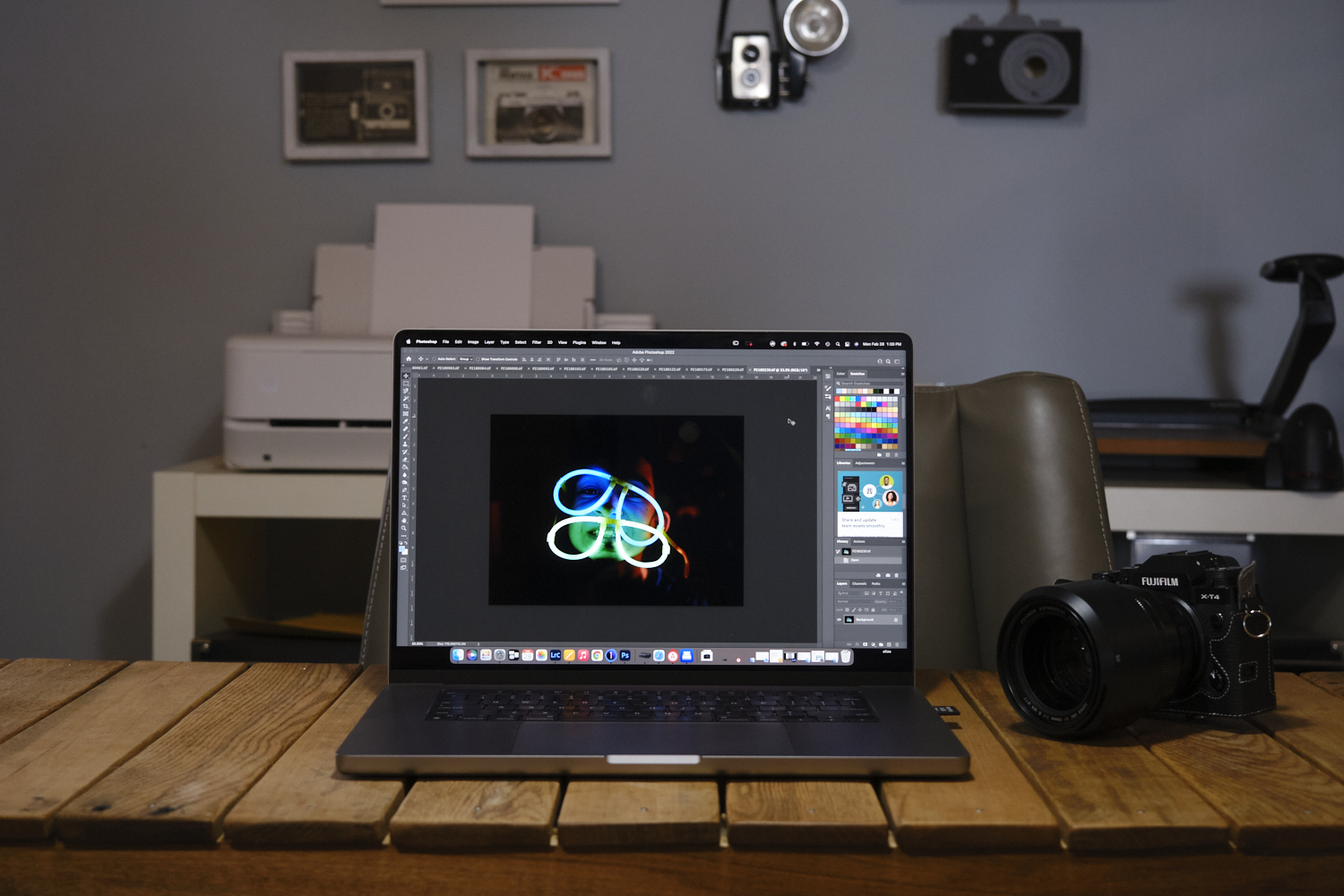
This article is written by a legally blind photographer. That means that even with corrective lenses, I can’t see 20/60 — and that also means that I’m no longer allowed to drive. How then, do I do photography? Well, autofocus is a wonderful thing. But there are tons of workarounds that you can do to get exactly what you’re looking for. And one of the most important things to think about is how your computer will handle images and how your eyes will be able to work along with it. Trust me, I’ve been at a point in my life where my face was a few inches away from the screen. Think of this more as a “What should I look for in a computer?” instead of my recommending what the best computers are.
First Off: Just Buy Apple
I’ve used both PCs and Apple devices in my career as a photographer and a journalist. Apple devices are typically just so much better because they’re all pretty uniform. So it makes software easier to work with. On top of that, the screens are all calibrated the same. There’s a big chance that whoever you’re sending photos to is using an Apple device, so that means that they’ll look closer to being the same as they are on your computer. That’s really hard to beat.
Apple’s Keyboards Can Really Suck
You really need an illuminated keyboard of some sort. Illumination helps you see what buttons you’re pressing and the high contrast makes understanding what you’re doing as you’re typing so much easier. If that’s confusing to you, then think of it like trying to find a specific button on your camera in the dark. It’s going to be pretty tough and that’s why photographers typically use the LCD screen instead to change settings. What brands like Panasonic LUMIX do is make some buttons have a special texture on them to make you realize that you’re hitting a specific button.
After being legally blind for 14 years, I can tell you that the best keyboard I own is from Das keyboard. I love the mechanical keyboard that gives me a more tactile feeling as I type. Plus, the buttons illuminate, it angles upward instead of being flat the way that most of Apple’s keyboards are, and I can use a wrist rest with it pretty easily.
Need Larger Text? Consider This
Older computers, when you put them into a larger text state, drain more power and the fan starts to spin. When you return it to the standard retina display mode, it’s just fine. For years, I couldn’t figure out why my computer’s fan was spinning all the time until I returned the display to the standard format. When that happened, the fan stopped running so hard. Now, the fan only really runs if I’m doing a lot of things in Google Chrome, I’m ediitng video, or I’m editing a whole ton of images.
How Does it Handle Capture One and Lightroom?
At this point in time, I can tell you that most computers can handle Capture One and Lightroom really well. I’m typing this article up on a 2019 iMac 27-inch that’s been fully maxed out. I’ve thought about getting a new computer, but I haven’t done so because there’s really nothing wrong with this one. Sometimes it’s slow, but I’m very confident that if I didn’t have to review cameras and lenses all the time, it would have zero issues at all.
This goes hand in hand with also just being a better photographer. If you condition yourself to shoot fewer frames, you’ll have less of a problem in post-production. And if you also teach yourself to look at images and star-rate them in-camera before getting to the computer, then your post-production process will go so much faster.
Final Cut is Usually Better on Apple Computers Than Premiere Is
Just in case you need to edit video, just know that final cut always runs better on Apple devices.
What You Don’t Need to Worry About
Lots of computer reviews talk about overclocking. We’re not overclocking or anything like that. And there are also lab tests. Photographers don’t care about any of that. All we’re doing is some task management, editing, web browsing, file management, etc.
Get rid of the ads!
Did you enjoy reading this article as much as we enjoyed writing it? There's a way to support us and our reporting, getting ad-free navigation and more as a bonus. Subscribe to us for less than a coffee per month —just $3.99— or take advantage of our yearly subscription with a hefty discount for only $25.- An ad-free experience
- A free mystery box for Lightroom or Capture One
- All the books in our store
- 20% discount on Capture One
- 30% discount on Imalume Photo Theft Protection
- 20% off Herbs and Kettle Tea Company.
- 20% off your order from MPIX printing services.
- 5% off Viltrox Products via their eCommerce store.
- 10% off all film developing, printing and scanning services from Blue Moon Camera and Machine
- 15% off 7Artisans products: The lens and accessory maker is offering a sweet discount for Phoblographer's readers.