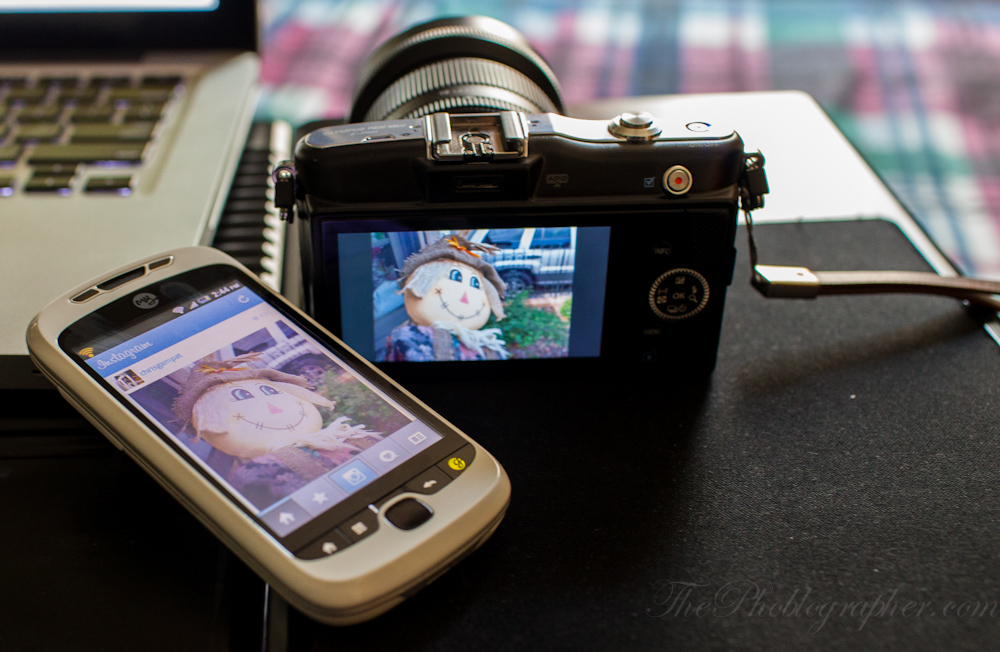
Useful Photography Tip #19: Partner Eye-Fi Mobile With Instagram for Sharper, Funner Photos

by Chris Gampat on 04/21/2012

Instagram is an extremely fun app to use that promote social photo sharing and has a major emphasis on simplicity. While this is all true, the photos from your phone won’t always be as great as your camera’s. To get around that, get your hands on an Eye-Fi X2 Pro card and enable Eye-Fi’s mobile sharing powers through the menus.

Plug the card into your computer using the special card reader. After the software is installed, click on the settings and route the photos to come to your phone. Try to set it so that only JPEGs come through and not RAWs. When you shoot a photo with your camera, the photos will be sent into Eye-Fi’s cloud where they will then be downloaded onto your computer or phone depending on how you set it up.

After downloading the Eye-Fi app for your Android or iOS device, ensure that your device will be able to receive the photos from your camera. Here’s how to do it with an Android device or an iOS device. The settings and menus could use a major UI overhaul, but after some experimentation and patience, you’ll be able to get it working.

For the best results, shoot in the smallest JPEG possible.

When shooting, your Eye-Fi card will try to find a WiFi connection; but if it can’t, it will create its own to send the images. The app’s ability to download images from the cloud will vary on your mobile phone carrier’s connection speed. Once they come in though, simply select the photo and click on the share button. Select Instagram, choose a filter, then type in a message followed by selecting where to send the photo to, and let it fly. This works best with Eye-Fi enabled cameras, I’m using my Olympus EPM1, but my Nikon D5100 would also work well.

Give it shot, and let us know if you have any questions. If you’re on Instagram, be sure to find me online @chrisgampat

You can check out more Useful Photography Tips right here.

  • Ziv (Eye-Fi co-founder)

    Chris,

    Great write-up. THANK YOU. This works great, with iOS or Android, as well as with any other app that can access the photo roll in iOS or the Gallery in Android. 

    Happy shooting –

    Ziv.

    • Hitesh_joshi23

      Hi Ziv,

      I brought my first eye fi and really impressed with the technology .. Thanks very much for making our life easier..

      Cheers,
      Hitesh

  • http://www.facebook.com/profile.php?id=790859965 Olle Braconier

    Okay, so I see the last question was 6 months ago, I will understand if no-one follow up my question :)
    However, here we go.
    Is it possible to put the Eye-fi card in my camera. Take a couple of shots. Go in to the playback-menu of my camera and select the pictures I want, then push them to my phone/eye-fi app. Or is there another way to do this?

    • ChrisGampat

      Yes. Through the software on your computer, set the protect images to upload. Then in the camera set those images to protected/locked.

      - Chris Gampat
      Editor in Chief
      The Phoblographer

      • http://www.facebook.com/profile.php?id=790859965 Olle Braconier

        Thanks for an impressivly quick answer!
        And, that’s a really smart solution. Thanks!

      • http://www.facebook.com/people/Ziv-Gillat/682610481 Ziv Gillat

        Exactly. We have 3 modes — Automatic, Selective Share and Selective Transfer. So you can choose how you want the card to behave. Check this link out:

        http://support.eye.fi/software/account/transfer-mode/

  • Jay Lim

    do you have to buy the pro model? why note the connect or mobile version of the card?

    • http://www.facebook.com/people/Ziv-Gillat/682610481 Ziv Gillat

      Eye-Fi Direct is supported in all of our SKU’s, even the $40 model :-) If you want to shoot RAW, and if you want geo + mobile hotspots — the Pro is your card. But if all you want, is to upload to your mobile phone, or to any sharing sites, the Connect will do as well. There is a nice comparison chart on our site, and I’m worried that if I add links, I’ll be seen as a spammer, so I’ll let you find it, on our Products page (below the fold) :-)

Previous post:

Next post: