

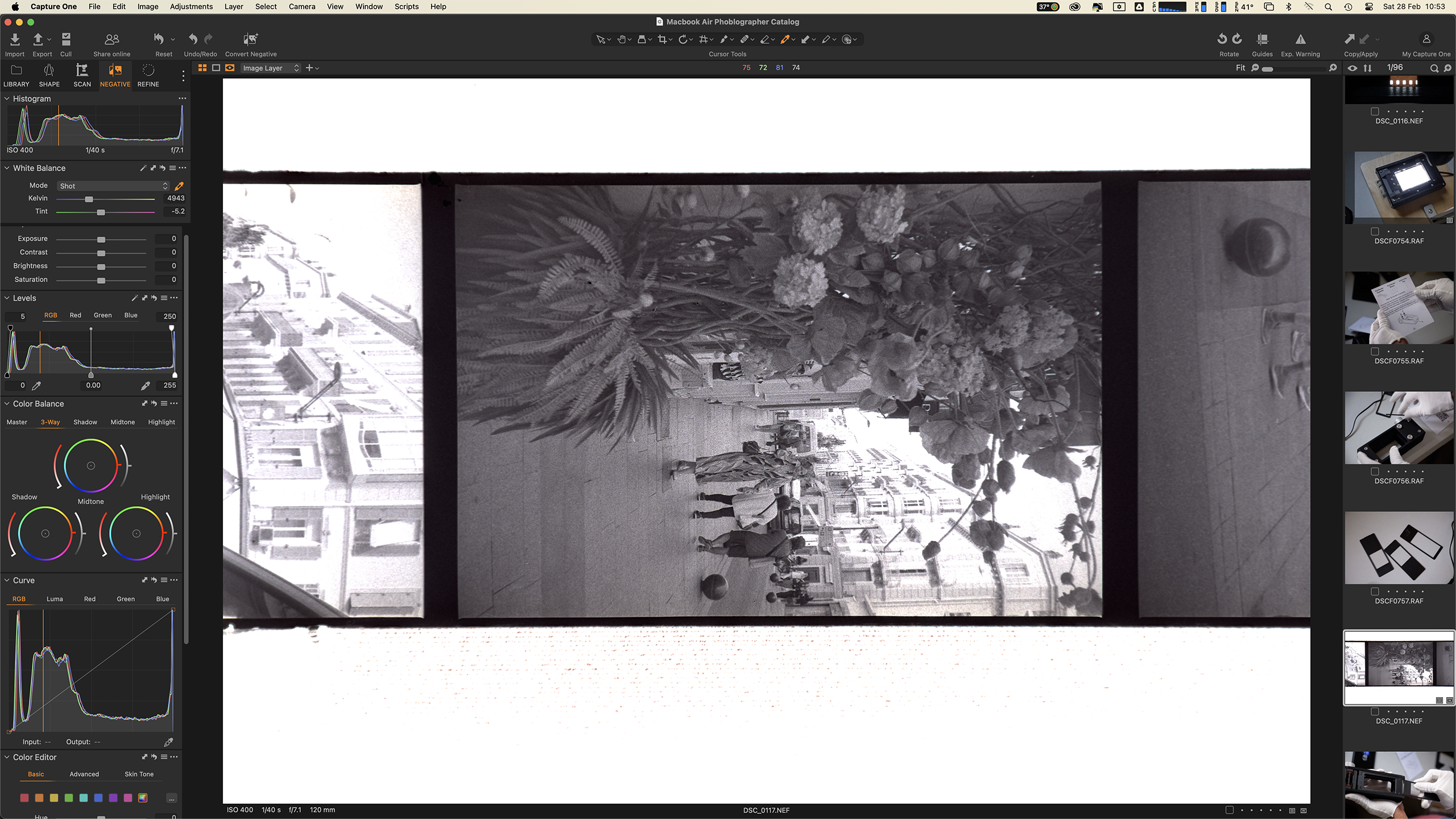
With the new Capture One update, film photographers have something to be happy about. There are new tabs dedicated specifically to aid you in scanning film and converting film negatives to digital positive images. With more and more photographers embracing the analog side of the art, it’s an interesting move by the company
What’s New
Capture One announced its new 16.7.4 Open Beta 2 version. The updates in here look to be targeting film photographers in particular. With two dedicated tool tabs to simplify your film scanning (in tethered mode) and also film negative conversion, Capture One has definitely done its homework. The new tools aren’t complicated and offer a quick way to scan your negatives. There don’t appear to be any automation workflows yet, but I hope they plan to add them in upcoming editions. If you’re a photographer who does a fair bit of film scanning, the next update to Capture One should definitely be on your radar.
Scan
Capture One already has arguably the best tethering capabilities of any post-production software available for professionals today. I use it during many of my portrait shoots, and it’s even available as an option on the Capture One iPad app. It saves a lot of time when you can see the image you shot almost instantly on a larger screen, like a laptop, and gauge whether your camera settings are good enough to keep going with.
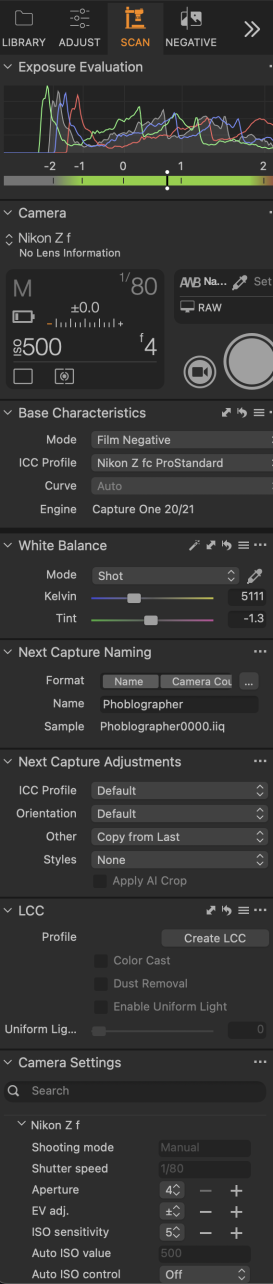
Making the tethering process a bit more suited for those wanting to convert their film negatives is the new Scan tool tab in Capture One. This now has a set of tools, some of which you may have seen in other tabs before, neatly consolidated in one tab to make your negative scanning easier.
As always, use a steady copystand for your scanning workflow, or if you’d prefer something that’s less of a hassle but still gives excellent results, then check out our reviews of the Valoi easy35 (excellent for 35mm scans) or the Valoi easy120 (for medium format), both of which make scanning more ergonomic and faster. Use the Live View feature in the Scan tab and align your camera’s lens with the negative to ensure a properly aligned capture.
Negative
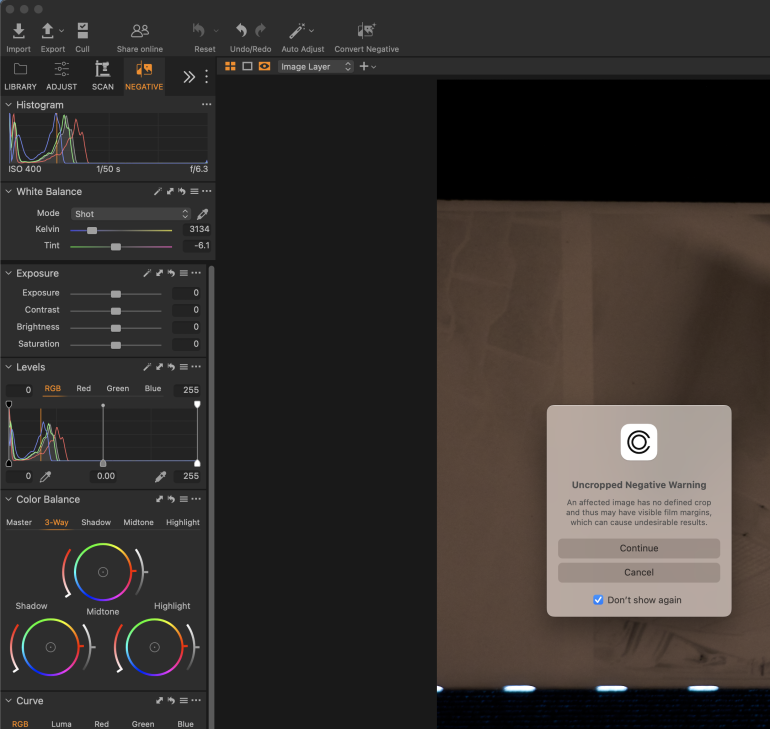
Once you’ve done your scanning or if you’ve already got scanned negatives, then head straight into the Negative tool tab. Here you can find various color correction tools that you are familiar with in Capture One. These are easy enough to understand if you’re a seasoned Capture One user.
Convert Negative
For me personally, the one really appealing addition to this version of the software is the Convert Negative tool that can be added to the top of your toolbar now.
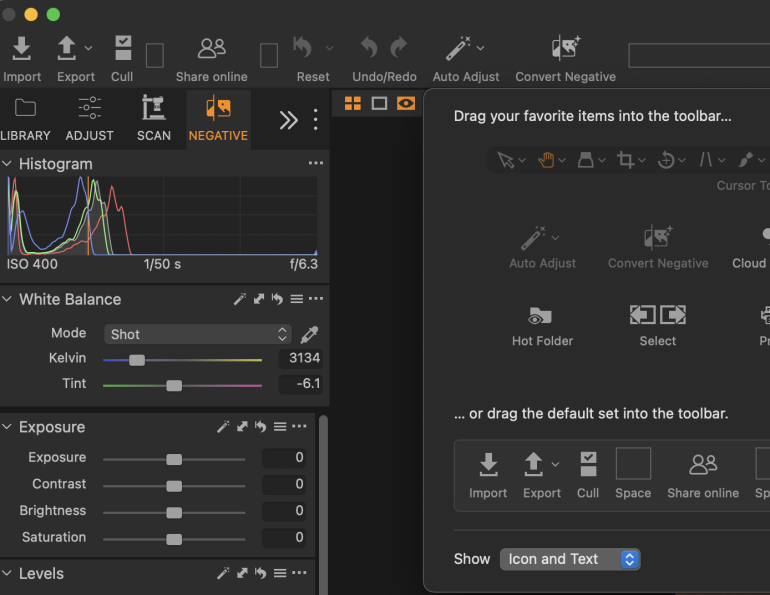
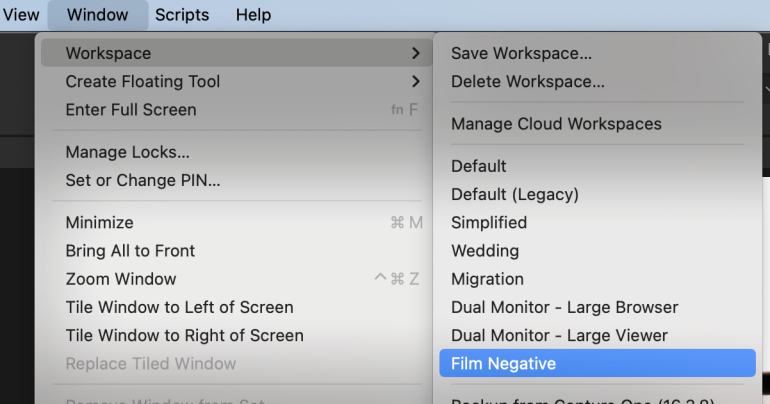
Of course, you wouldn’t really need this tool to be seen when you’re editing your regular digital photos, but if you want to for whatever reason, it can be added into your usual workspace. Otherwise the best thing to do would be to just swap your workspace for the Film Negative one when working with scans, and you’ll see this quick edit tool at the top.
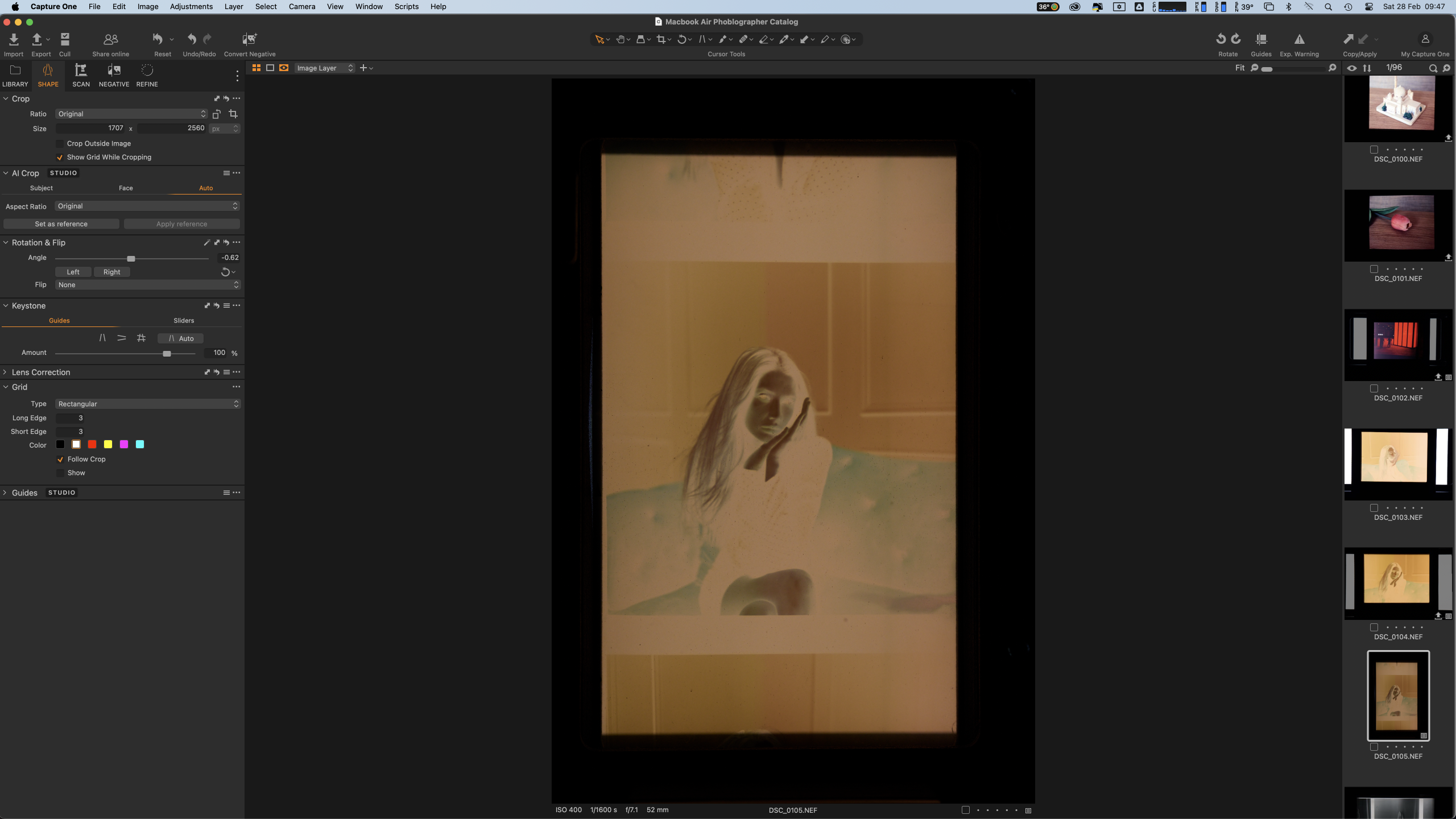
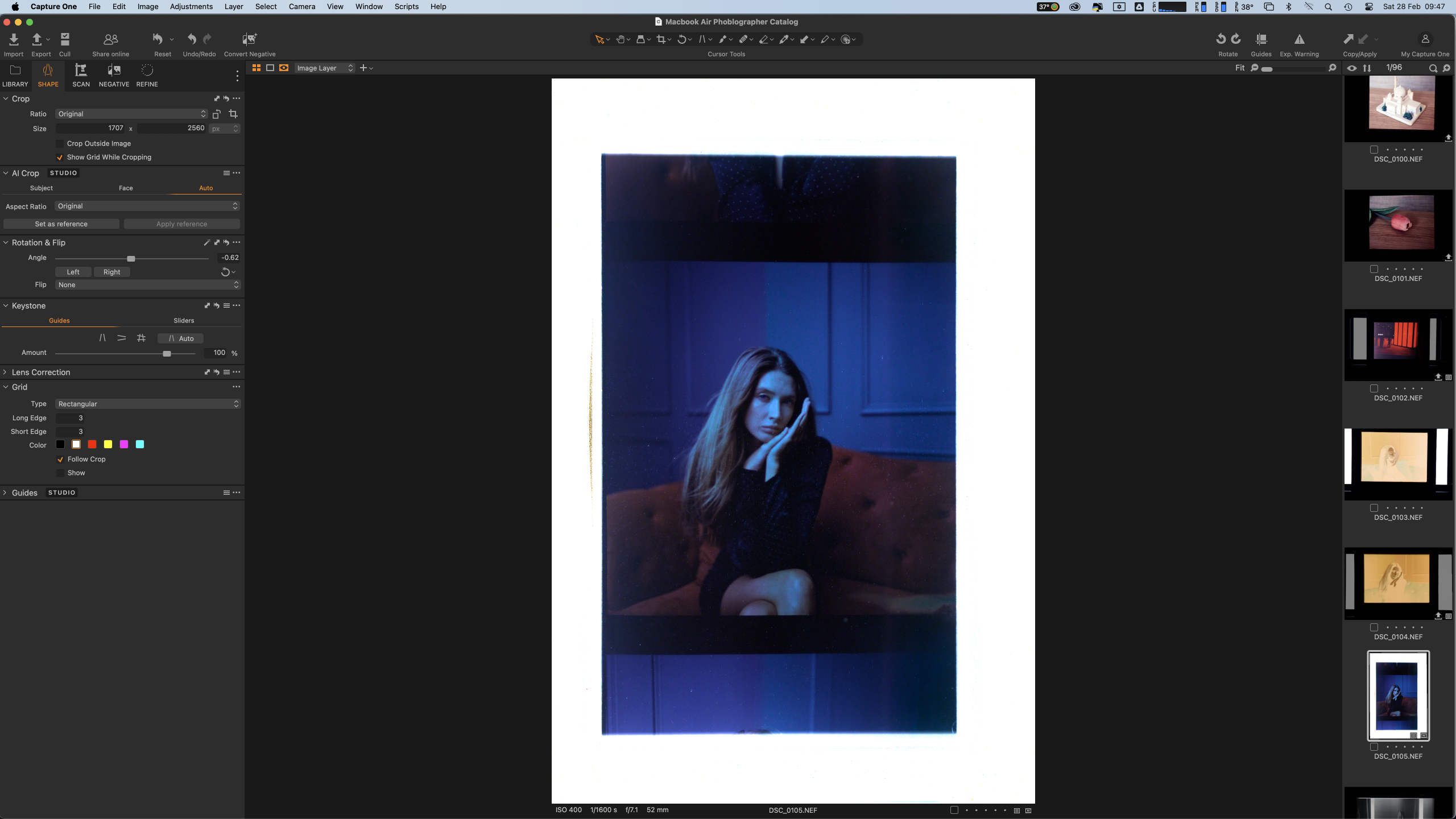
In essence what this tool does is a very quick inversion of your scanned film negative, plus an auto adjustment of levels. I am very curious to know if these few steps can be applied automatically when in the Scan tethered mode. This would be great for scanning negatives and immediately being able to see what the photograph was, without having to later manually invert the files.
Capture One has stated specifically that auto masking tools like Subject, Background, and People masks may not work as intended. The same applies for Match Look. Also, Dehaze and Retouch tools have been disabled for the Film Negative workspace
LCC (Lens Cast Correction / Calibration)
The Lens Cast Correction tool is for those who want more finer corrections to their scanned photos. This is useful since not all light sources used for capturing negatives have uniform brightness. Have your focus set for the plane of the negative and then place an LCC plate over the light source and take a photo of it. You can then create an LCC reference setting in this tool and use it for correcting future scans. Think of it as a one-time calibration setup.
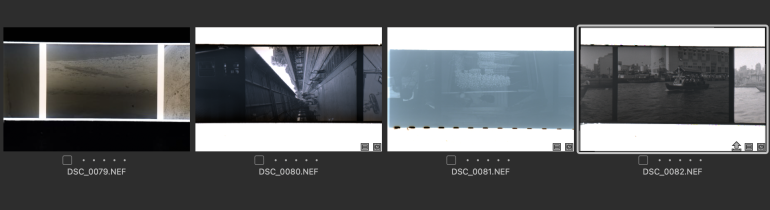
Images edited using the new tabs in Capture One can be seen below. Negatives were graciously supplied by my friend Don Surrendra:


I want to see more automation tools in these new tabs. I want to be able to click a negative and have it inverted and auto corrected to some extent, and I want this to be something I can turn off or on when needed. This is an option that may really make some analog photographers move over to Capture One.
Get rid of the ads!
Did you enjoy reading this article as much as we enjoyed writing it? There's a way to support us and our reporting, getting ad-free navigation and more as a bonus. Subscribe to us for less than a coffee per month —just $3.99— or take advantage of our yearly subscription with a hefty discount for only $25.- An ad-free experience
- A free mystery box for Lightroom or Capture One
- All the books in our store
- 20% discount on Capture One
- 30% discount on Imalume Photo Theft Protection
- 20% off Herbs and Kettle Tea Company.
- 20% off your order from MPIX printing services.
- 5% off Viltrox Products via their eCommerce store.
- 10% off all film developing, printing and scanning services from Blue Moon Camera and Machine