

As photographers, our data is our most important asset. Unfortunately though, it’s also the most volatile part of our entire production. Hard drives are fragile, memory cards can fail, and worst of all, gear can be lost or stolen. Without our data, our history and credibility as photographers is gone, and all of our time building out our portfolio is wasted.
If you take any of your work seriously, or even would just like to preserve your memories more securely, you need to think about creating a file management and backup workflow. Having multiple copies of all your data is crucial, and creating redundant backups has become incredibly easy with the advent of cheap hard drives and highly effective off-site backup solutions. I’m going to recommend a few very effective and easy to use backup systems that I use regularly, and explain why I believe it’s absolutely critical that you implement something similar.
On-Site Backups
Hard drives may be fragile, but they are also very inexpensive, which means there is no excuse for not having multiple local drives for redundant backup. A 1TB external hard drive can now be had for well under $100. There are a number of ways to go about backing up your data to that external drive, but I’ve got a few favorites.
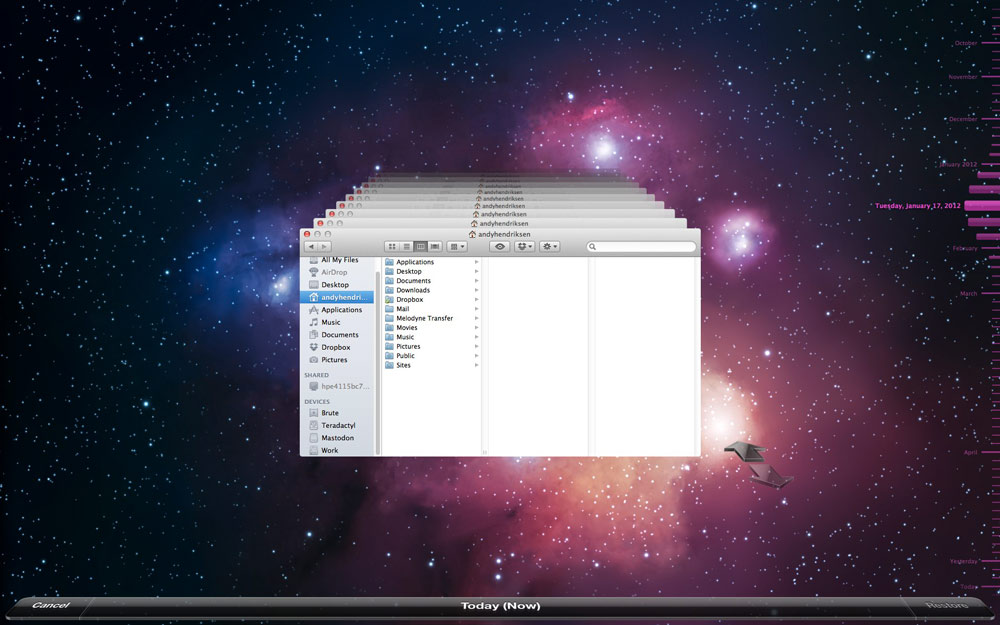
First, if you’re a Mac user, there’s Time Machine. There’s a lot of discussion about Time Machine, and whether or not it makes an effective and efficient backup strategy, but I have never had an issue with it and have nothing bad to say about it. If you’re unfamiliar, Time Machine is a feature built into Mac OS X that automatically backs up all of your data to a specified drive. You don’t choose specifically what you want backed up–it just does it all. Your data can then be restored via a time-warp like interface that allows you to go back to specific dates and access files backed up from that day.
The beauty of Time Machine is that it’s incremental. If your backup drive is large enough, you’ll end up with hundreds of backups of your files over the past few months, which becomes incredibly useful for accidental data deletion. There’s been numerous times when I’ve accidentally deleted a file from my drive and was able to recover it immediately via Time Machine’s intuitive interface. It’s always worked great for me, and I’ve never hesitated to recommend it as a good first-step in creating a backup strategy.
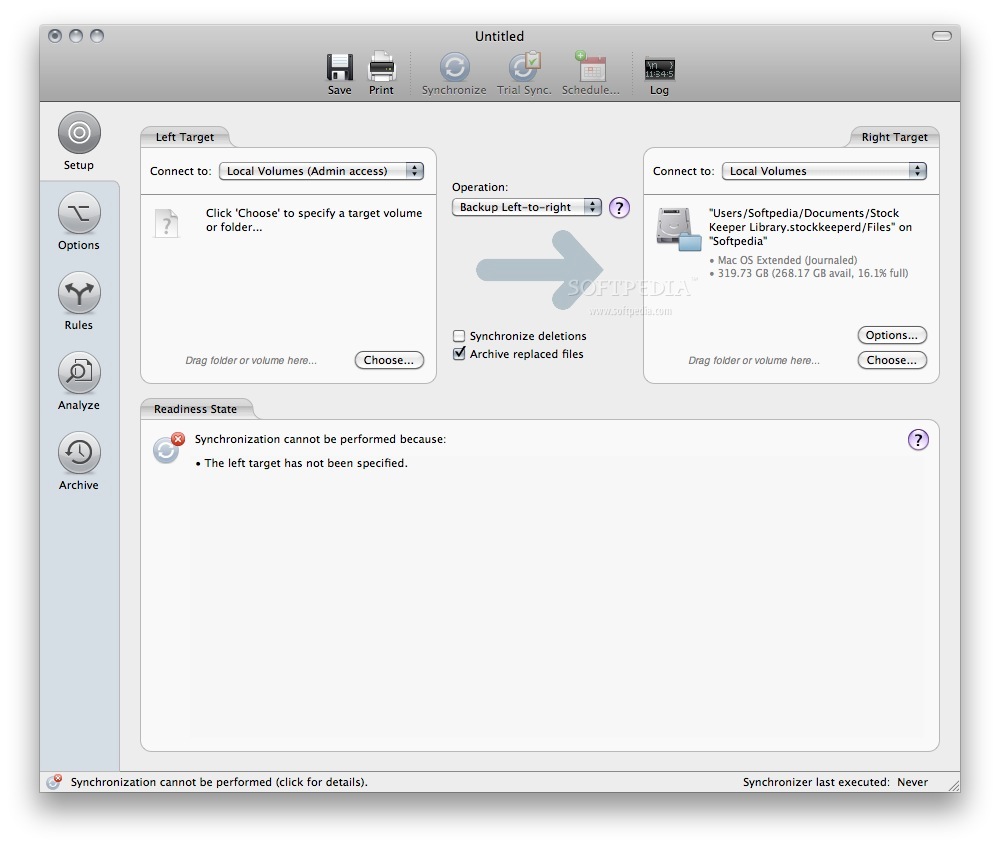
If you’re hesitant to dive into using Time Machine, or you’re not a Mac user, there are other good backup or file synchronization solutions for on-site backups. On the Mac, ChronoSync is fantastic and incredibly powerful for scheduling backups and synchronizations between your Mac and external hard drives. On Windows, Acronis True Image is highly regarded for creating live, bootable disk images.
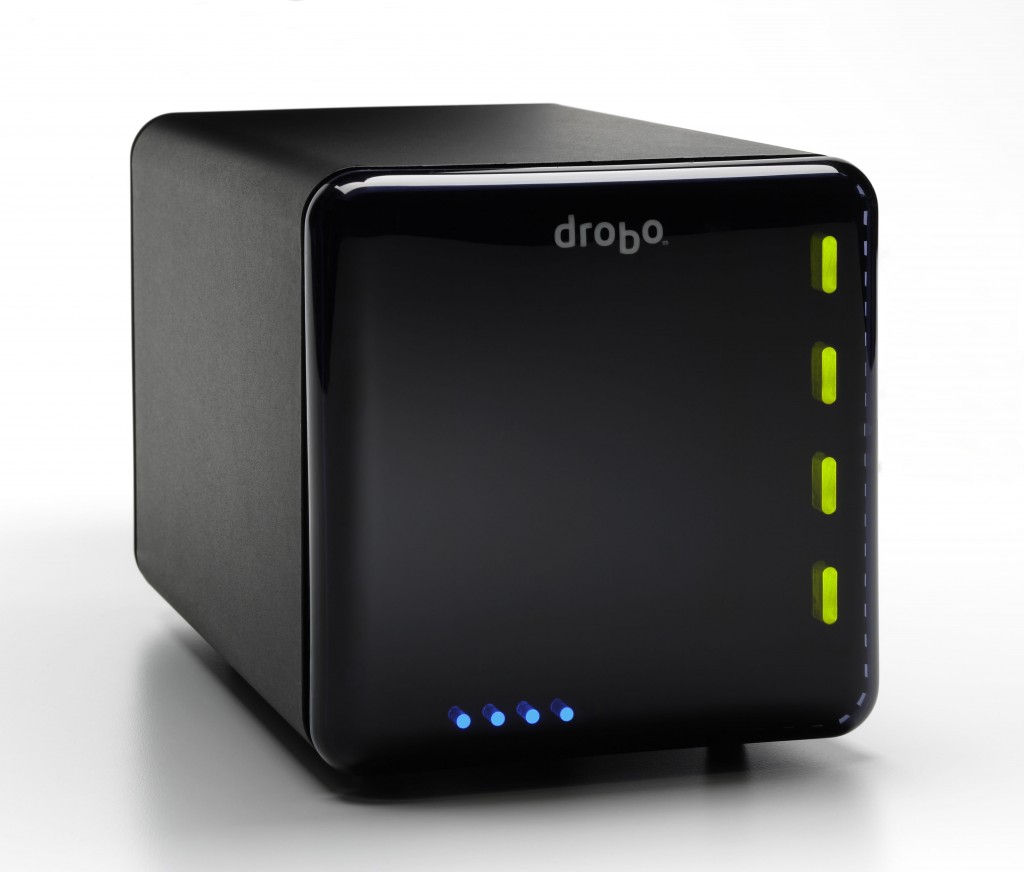
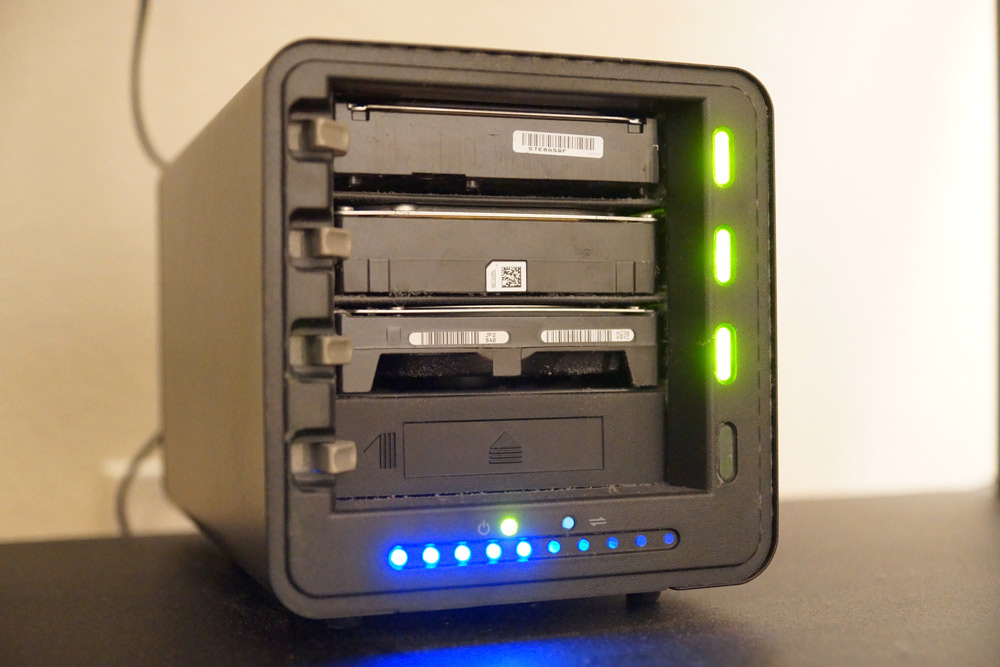
In addition, if you really want to get crazy with on-site redundancy, consider putting together a RAID system or similar. I use a Drobo, which combines multiple disks into one large redundant array. Essentially, any one of the drives in my Drobo enclosure could fail, and I will continue to have access to all my data. When I replace the failed drive with a new one, the array is rebuilt, and redundancy is restored. It’s a complicated system that is built into a very user-friendly package, and adds another great layer of protection against hard drive failure related data loss.
Off-Site Backups
There are places where on-site backup solutions fall short, particularly when it comes to gear theft or property disasters such as flooding or fires. Because of this, it is important to keep an off-site backup of your data in addition to your on-site redundant copy. This way, no matter what happens locally to your computer, your hard drives, or your memory cards, your data will always be available to you in the cloud. You have a lot of options for off-site backup solutions, and I’ve tried them all, but there are a few I really like.
I primarily use two off-site backup solutions, Crashplan+ and Backblaze.
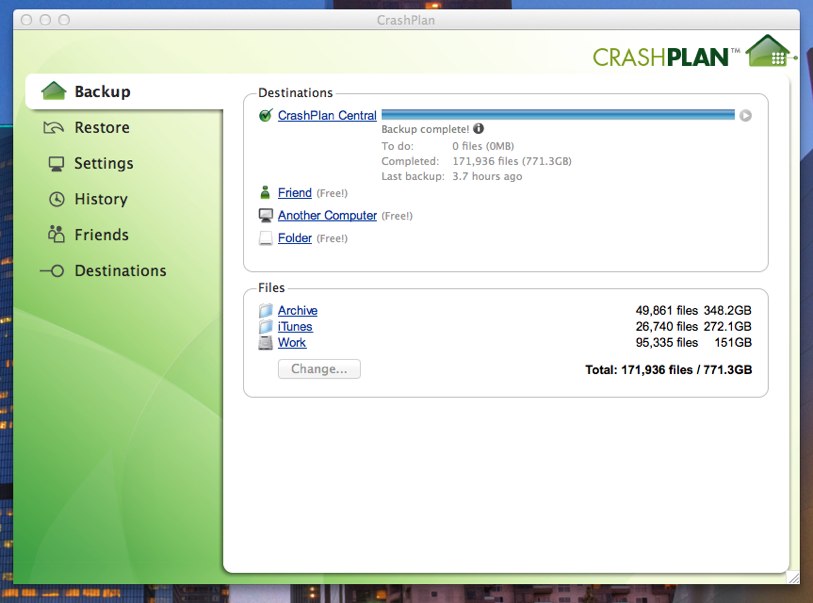
Crashplan+ is great because it’s incredibly flexible. You can use it to backup to “Crashplan Central”, which is Crashplan’s data servers, but you can also use the software to backup to another computer in your home, or even a friend’s computer off-site. This gives you the possibility of getting creative and building a complete backup strategy with just one piece of software. The software itself is very light, unobtrusive, and very easy to understand and setup. You simply pick the folders you’d like to backup, choose the backup destination, and that’s it. It, of course, depends entirely on your internet connection’s upload speed as to how quickly (or not) it will back up, but once the initial backup is completed, the incremental ones will happen quickly in the background without you even noticing. At just $5/month for unlimited backup to Crashplan Central, it’s a very small price to pay for peace of mind and complete data integrity.
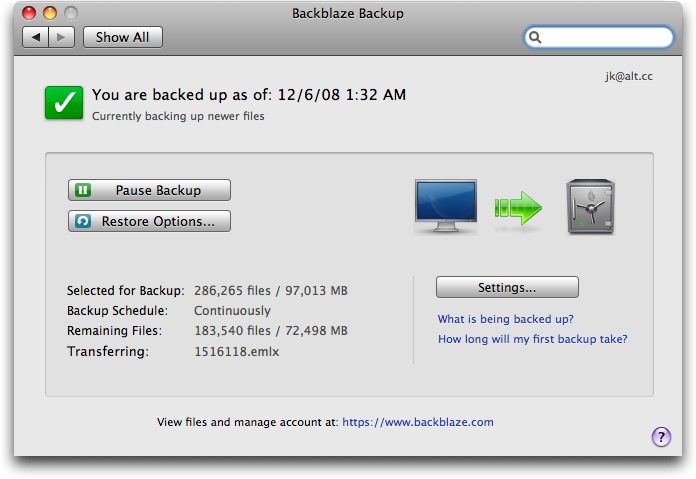
I also use Backblaze for off-site backups. I installed it initially when I was comparing it to Crashplan, but I decided to keep it installed for an extra layer of protection. If, for instance, Crashplan’s servers go down, or the company goes out of business, I’ll always have my Backblaze backup available. Blackblaze’s software isn’t quite as flexible as Crashplan, and it doesn’t offer the same local backup options, but it does the job just fine. You can subscribe to Backblaze for as low as $3.96/month for unlimited data storage.

In addition, I use a photography-specific backup solution in the form of online photo sharing site, Smugmug. I have a Smugmug Basic account, which for $40/year gives me unlimited photo storage. My entire photo library is uploaded to Smugmug, and kept inside a private album. I don’t regularly use Smugmug for actually sharing the photos, but having all my photos uploaded to a service that is specifically made for photo storage gives me peace of mind that they’re well taken care of. You could do the same thing with Flickr, or any other photo sharing service. Again, any additional layer to your backup strategy will give you peace of mind and could ultimately save your years of hard work in an emergency.
I run both Crashplan+ and Backblaze on my home computer, and my MacBook Air. When I am traveling and I finish shooting, I immediately import the photos from my SD card into Lightroom on my MacBook Air, and my entire Lightroom library is backed up to Crashplan and Backblaze. One thing to note: under no circumstances should you ever format an SD card unless you’re absolutely sure that your photos exist in at least 3 separate places. For me, while traveling, those places are my MacBook Air, Crashplan, and Backblaze. When I get home, it’s my Mac Pro, Time Machine, Drobo, Crashplan, Backblaze, and Smugmug. There are many other off-site backup solutions, like Carbonite or Mozy, that are all certainly capable of doing the job. Ultimately it doesn’t really matter which service you use, as long as you are using one.
Conclusion
This may all sound like I’m being paranoid, but as an audio engineer and photographer, my life and my work is almost entirely in digital form. Losing my data would be devastating, and ultimately cause serious harm to my personal and professional life. There’s nothing worse than having to deliver bad news to a client, and telling them that their data has been lost is something you don’t ever want to go through. Backing up in multiple places isn’t being paranoid–it’s being smart.
For more information, and a darn good read about data management from the point of view of a photographer, check out Peter Krogh’s “The Dam Book: Digital Asset Management for Photographers”. Much of my backup workflow was derived from ideas I picked up from this book, including Peter’s “3–2–1 Backup Strategy”, which states that all your all your data should exist in 3 places, on 2 different media types, with 1 off-site. Following rules like that will save you when the worst happens, and you’ll be awfully glad you did it.
Please Support The Phoblographer
We love to bring you guys the latest and greatest news and gear related stuff. However, we can’t keep doing that unless we have your continued support. If you would like to purchase any of the items mentioned, please do so by clicking our links first and then purchasing the items as we then get a small portion of the sale to help run the website.